The Batch Apex “Ghost Data” Mystery: Why finish() Sees What execute() Missed

Have you ever experienced this Salesforce scenario? Your Batch Apex job marks itself as “Completed,” yet you discover thousands of records that were never touched by your business logic. You check debug logs for the execute() methods and find nothing for those records. Yet, oddly, the finish() method seems aware of the total scope.

Welcome to the nuances of Batch Apex Transaction Isolation.

This post solves the mystery of why your finish() method can query data from the original start() scope that individual execute() methods never successfully processed.

The High-Level: It’s About Boundaries

In Salesforce Batch Apex, the finish() method executes in a completely separate transaction after all batches have completed (or failed).

Because of transaction isolation, each execute() chunk runs independently. If a chunk fails due to governor limits or unhandled exceptions, that entire chunk rolls back silently. The records in that chunk are never committed to the database in their processed state.

However, finish() gets the “30,000-foot view” post-completion. It can see the final state of the database (where those records still look unprocessed) and query the job metrics to see exactly what went wrong.

Batch apex, salesforce, flow

Visualizing the Disconnect

Here is the flow of a batch job. Notice how the execute() chunks are isolated lanes, while finish() is a separate checkpoint at the end.

Detailed Breakdown: Transaction Isolation

Batch Apex processes records in rigid, isolated transactions. Each execute() handles its scope (e.g., 200 records) with its own brand new set of governor limits.

If Chunk 3 hits a CPU timeout or a “Too many SOQL queries” error:

  1. The execution stops immediately.
  2. All DML operations within that specific chunk transaction are rolled back.
  3. Crucially: The job does not abort. It moves on to Chunk 4.

The records in Chunk 3 remain untouched in the database.

When the finish() method finally runs in its own isolated transaction, it accesses two key things:

  1. Full Job Metrics: By querying AsyncApexJob, it sees the reality of the failures.
  2. Database State: It sees the database exactly as it is. Since Chunk 3 rolled back, re-querying the original criteria reveals records that still match the “unprocessed” criteria.

Example Scenario: You have 1,000 records split into 5 chunks of 200. Chunk 3 fails on a governor limit.

  • execute() view: It never finished processing those 200 records.
  • finish() view (via AsyncApexJob): TotalJobItems: 5, NumberOfErrors: 1, ExtendedStatus: "System.LimitException: Too many SOQL queries: 101"

The Code That Reveals the Discrepancy

Use your finish() method to act as the source of truth by querying the job status directly.

global void finish(Database.BatchableContext bc) {
// 1. Query the AsyncApexJob to get the true execution metrics
AsyncApexJob job = [SELECT Id, Status, NumberOfErrors,
TotalJobItems, CompletedDate, ExtendedStatus
FROM AsyncApexJob WHERE Id = :bc.getJobId()];
System.debug('Job finished. Total Batches: ' + job.TotalJobItems);
System.debug('Batches with Errors: ' + job.NumberOfErrors);
if (job.NumberOfErrors > 0) {
// ExtendedStatus often contains the specific limit exception message
System.debug('Failure Reason (ExtendedStatus): ' + job.ExtendedStatus);
// Optional: Re-run the original start query to identify exactly which
// records remain unprocessed in the database.
// List<Account> unprocessed = Database.query(yourOriginalSOQLString);
// System.debug(unprocessed.size() + ' records remain unprocessed in DB.');
}
}

Error OAUTH_APP_ACCESS_DENIED connecting Postman to Salesforce

After inserting all the correct information , if you are unable to Generate new access token and receiving following error OAUTH_APP_ACCESS_DENIED.

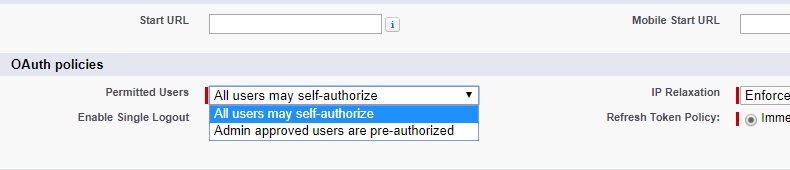
You have to enable users to Self-authorize

Setup >> Manage Connected Apps[Lightning]/ Connected Apps under Manage Apps[ Classic] >> Edit against connected app >> Select All Users may self-authorize in permitted users picklist

Connected apps

You are all set. Go ahead and try again and you will be prompted with allow window

How to get Id of the Object

Salesforce allows you to get the Key Prefix.

Key Prefix is 3 character unique key for each Object. There are two ways to find the Key prefix.

1) using schema.getGlobalDescribe()

For(Schema.SObjecttype obj: Schema.getGlobalDescribe().Values()){

System.debug(obj.getDescribe());
System.debug(obj.getDescribe().getKeyPrefix());

}


2) Every record Id first 3 letters is a Object KeyPrefix;

Contact cc: [Select id from Contact limit 1];
String keyPrefix = String.valueOf(cc.id).substring(0,3);


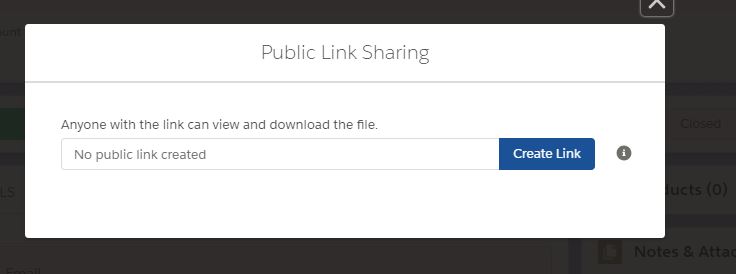
Share via Link :Public Link

? How to get a Public link through Apex

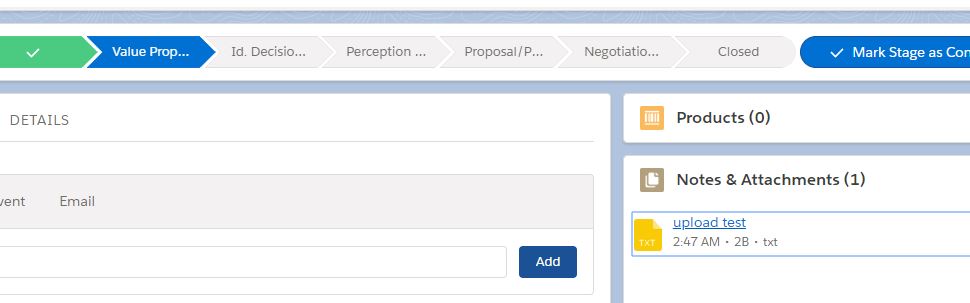
You have created a record on opportunity and attached a document

In order to share the document to the user who doesn’t have an access to Salesforce you have generated a public link and now you want to show use in apex

Following query can be used to get the public link

Select Id,name, DistributionPublicUrl FROM ContentDistribution

DistributionPublicUrl will give you the link. You will not get the link is you have not clicked on create link and generated the link

Maps in Salesforce [Basic]

Imagine Map collection to be a google map. You enter a location name or zip code to get the entire information about the area in the google map.

Consider location name to be the KEY and information you get to be a VALUE.

Map works on same concept. It contains KEY and VALUE

Map<key, value> ();

KEY can be of any data type, but it is usually STRING or IDs

VALUE can be of any data type, but it is usually SObjects in salesforce


Declaring Map

Map<Integer, string> m1 = new Map<Integer, String> ();

Storing value into MAP: put(key,value)

m1.put(1,’Hello’);
m1.put(2.’world’);


Get Key from the MAP:  keyset()

Set<Integer> allkeys = new Set<Integer>();

Allkeys = m1.keyset();


Get values from the MAP:

  • values() returns all the values
    List<String> values = new List<String>();
    Values = m1.values();


  • get(Key)
    m1.get(1);
    m2.get(2);


You can populate Key value by declaring curly brace {}. Inside Curly brace define Key followed by => and then value

Map<String, String> allstr = new Map<String, String>{1=>’a’, 2=>’b’};


We will cover advanced level of Map in another section . Please click on the link to check out advanced section of Map

Best Practices for View State

View state has a limit of 135k

Best Practices to optimize your view state

  • Minimize number of forms:
    Avoid using multiple form tag in VF page
    Instead of using multiple forms use <apex:actionregion> to submit portions of the form.
  • Declare variables as Transient.
    if you have referred section view state in VF page you must be aware that non-transient variables are stored.
    If variable is declared as Transient it is not saved and is not transmitted
  • Recreate state instead of storing
    if you can recreate the data during postback using SOQL , you must do that
  • Use Custom settings or Custom objects to store the read only data
  • Only Add the fields in SOQL which is required